Expense tracker app with no bank login
Expense tracker app with no bank login: log spending in your phone browser, in any of 41 currencies, set budgets and see what is left per day. No bank to connect.
Free plan, no card needed. Works in the browser on your phone and computer. There is no store app to install.
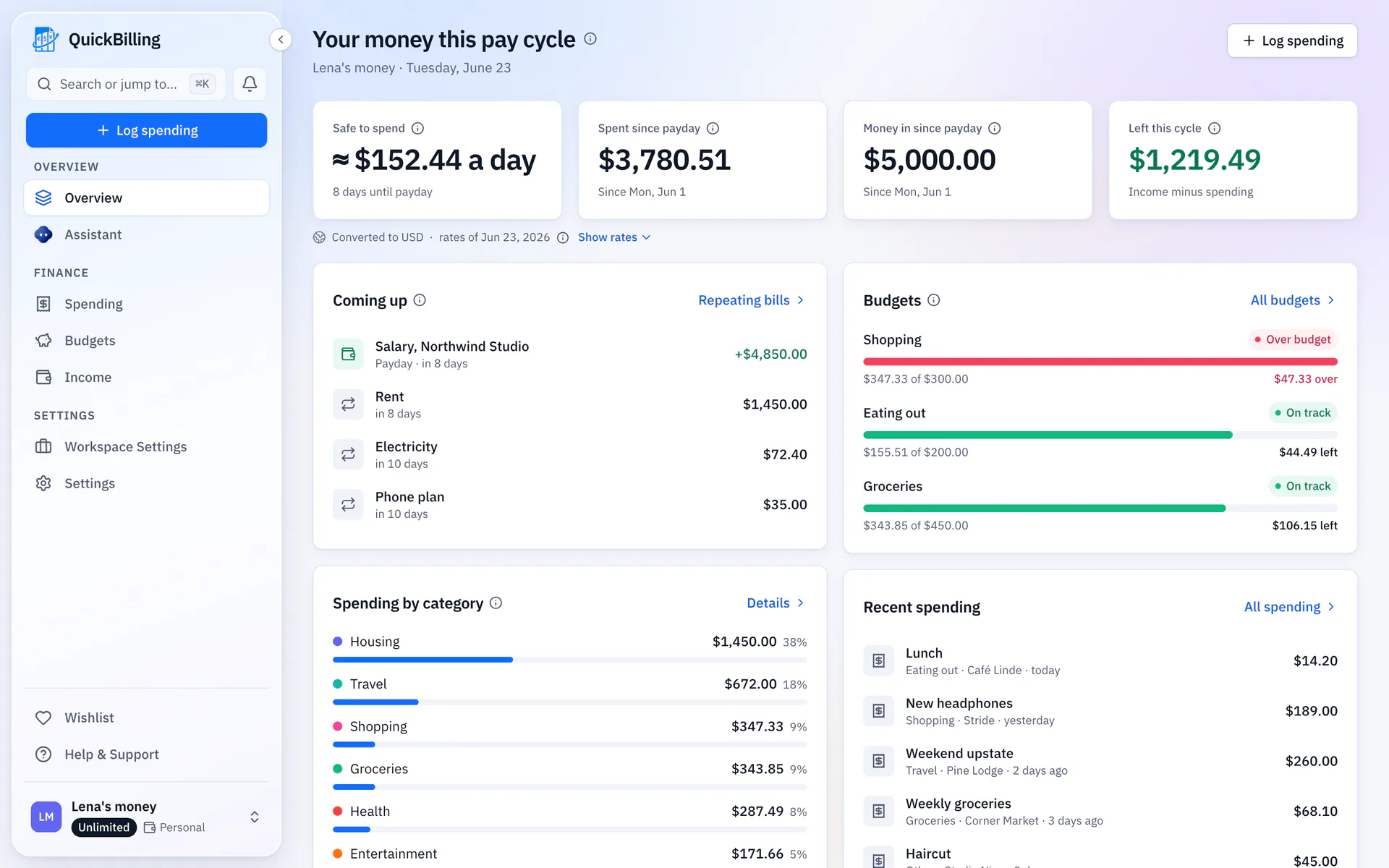
Overview
Expense tracker app without a bank login: log spending yourself, set budgets and see what is left per day, in any of 41 currencies. It is also an expense tracker app with a receipt scanner, and it is an expense tracker app free to start. It runs in your phone browser.
From sign-up to your first entry
There is nothing to connect, so setup is short.
Pick Personal when you sign up
The first question is what the space is for. Choose personal money and the invoicing tools stay out of sight.
Name it and choose a home currency
Everything you log in another currency is converted to it, so the totals add up.
Add your pay and what to watch
Enter your take-home pay and payday, then pick the spending to watch, like groceries or eating out, and give each a monthly limit. Both are optional.
Log your first purchase
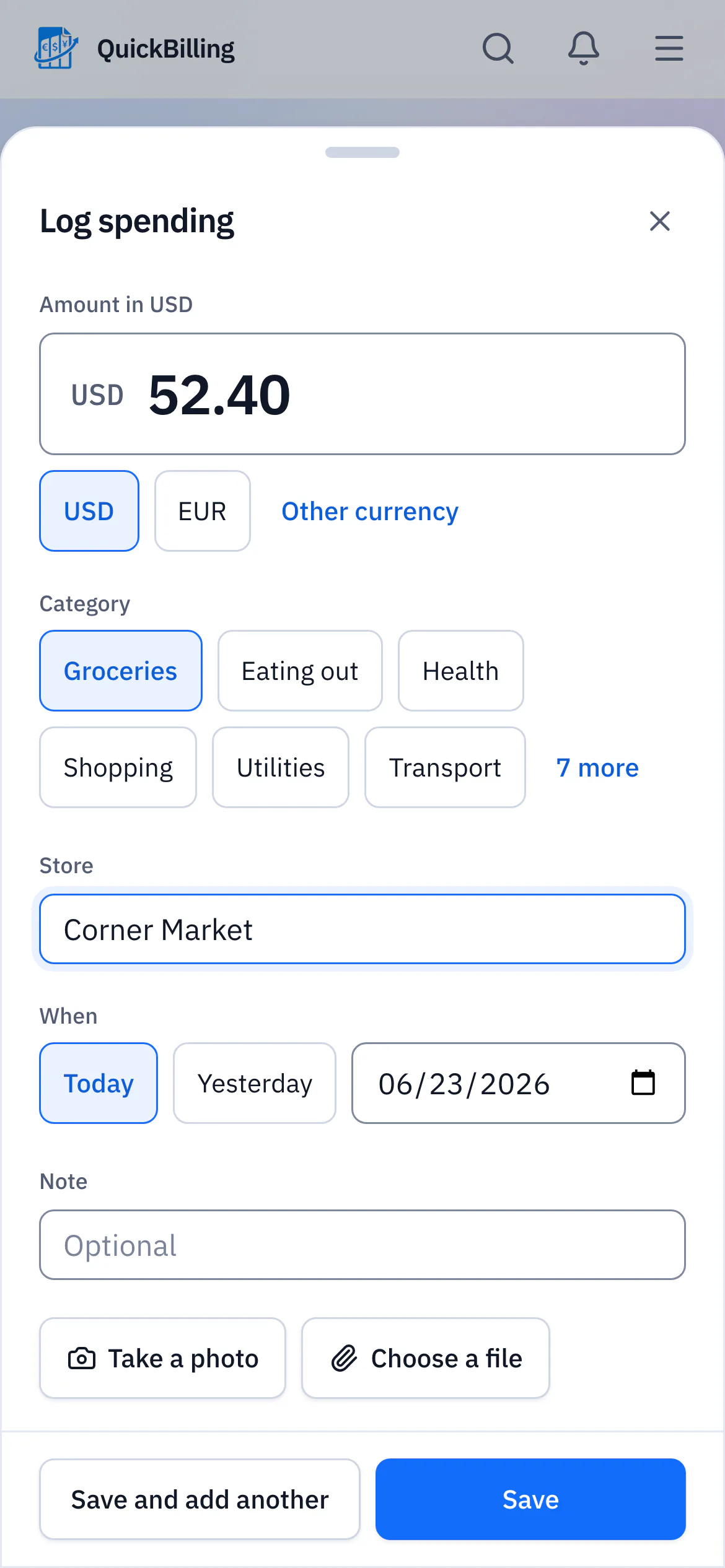
Amount, category, store. It shows up on your home straight away.
Log spending in a few taps
The entry you make right after paying is the one that gets made, so logging is one button: Log spending in the sidebar, or the + in the middle of the tab bar on your phone.
Only what matters
Only the amount is required. Add a category, a store and a note if you like, and pick today, yesterday or another day. The currency starts as your home currency.
Counts straight away
In a personal space nothing waits for approval. A purchase shows up in your totals, categories and budgets the moment you save it.
Receipts and repeats
Drop a receipt photo or PDF on the entry, and let rent or a subscription repeat on its own schedule.
Ready-made categories
Thirteen everyday categories from the start, from groceries and housing to subscriptions and gifts, plus any you add yourself.
In your language
The ready-made categories are named in the language you use the app in.
Amount first on your phone
The quick add opens on the amount: type it, tap a category, take a photo of the receipt if you like, save. Saved by mistake? Undo is offered for a few seconds.
See where this month's money went
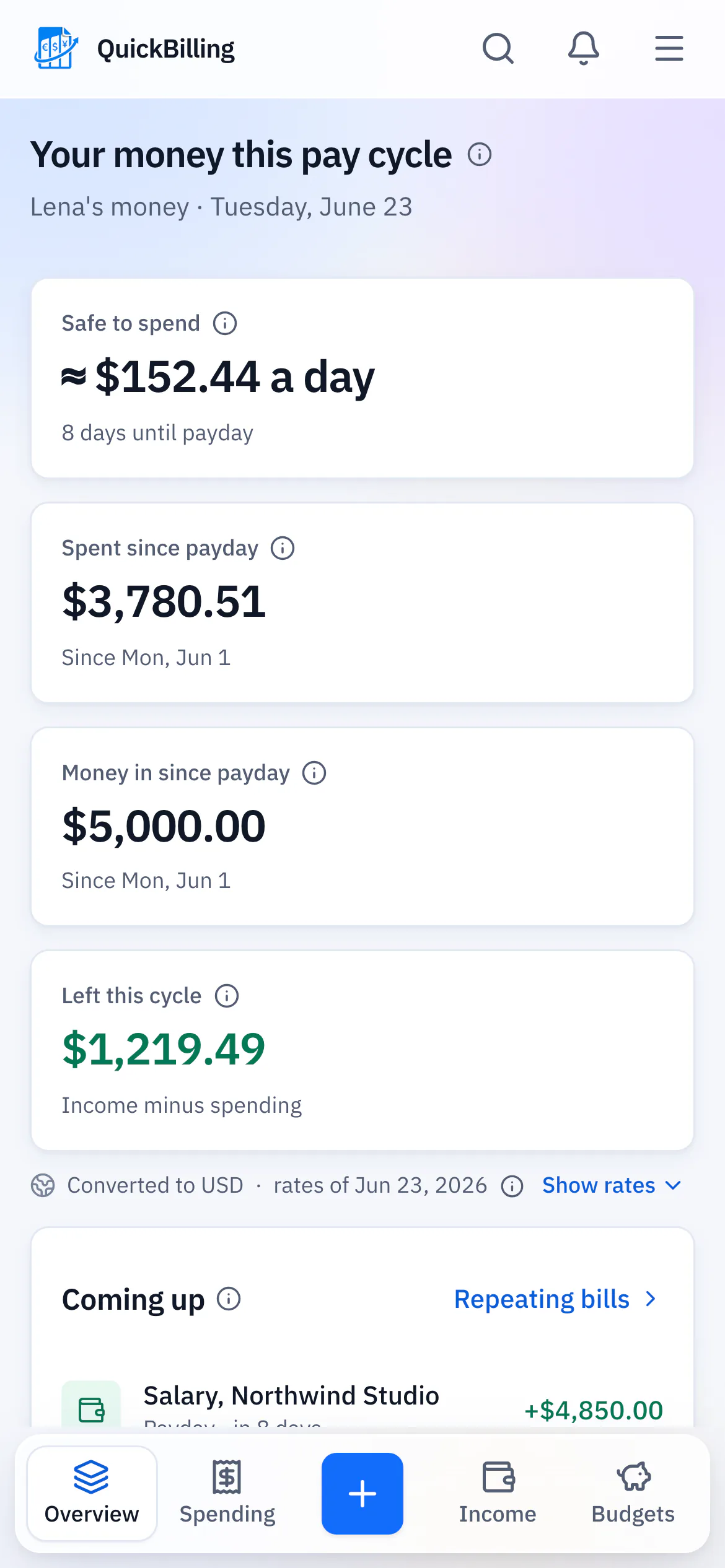
Your personal home answers what you open it for: what you can spend each day, and where the rest went.
Safe to spend
The lead figure: what you can spend each day, spread over the days left until payday, or until the end of the month if you have not set a payday.
Spent
Everything you logged since your last payday, or since the 1st if no payday is set, converted to your home currency.
Money in
Your pay and anything else that came in over the same days, recorded on the Income page.
Left
Money in minus spending, so you see at a glance whether you are on plan.
Until payday
With your payday set, safe to spend also sets aside the repeating bills due before payday, and shows the days to go.
Salary on payday
Your salary is added to income on its own each payday.
Coming up
Your next payday and the repeating bills due in the next two weeks.
Below the totals: spending by category, your budgets and your latest entries.
Budgets for groceries, eating out and the rest
Give the categories that tend to run away a monthly limit and watch the bar fill up.
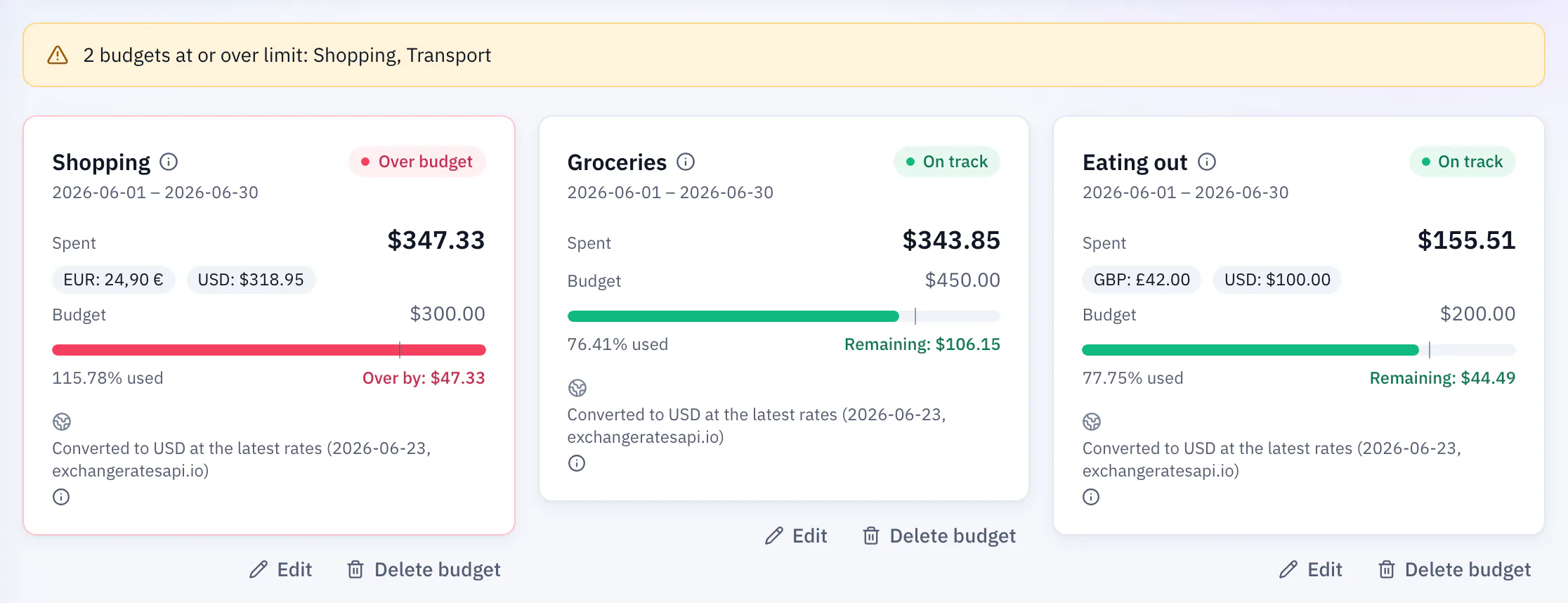
One limit per category
Set an amount for the month and the bar fills from your entries, whatever currency you paid in.
A warning before it is gone
A budget shows Near limit at 80 percent (change the percentage per budget) and Over budget once you pass it.
Every month, on its own
Set a budget once and it starts again on the 1st of every month.
Log spending in 41 currencies
Log each purchase in the currency you paid, and the totals come out in your home currency.
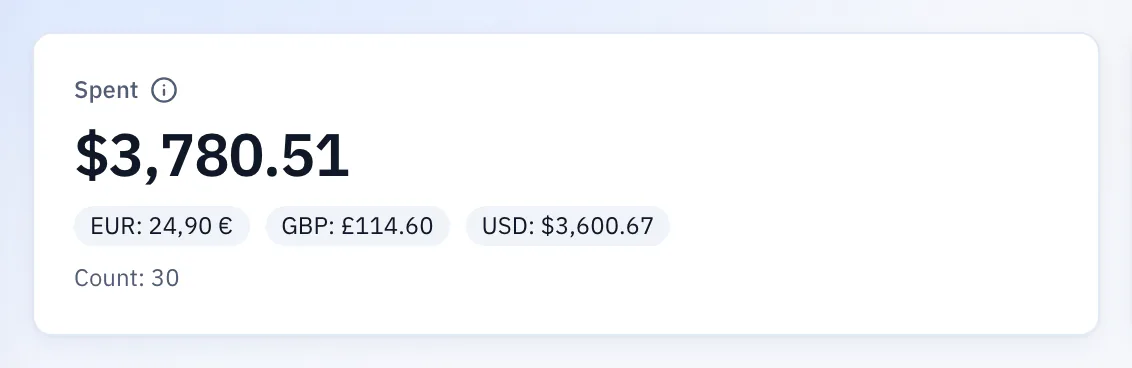
The amount you really paid
An entry keeps the pounds, dirhams or pesos you spent. Your home adds them up in your home currency.
Rates you can see
Conversions use stored exchange rates, and the date of the rates sits next to the totals so you can see how current they are. They are for planning, not for your tax return.
Made for two-country lives
Paid in dirhams and spending euros on visits home? One space holds both.
Ask the assistant about your money
The assistant inside QuickBilling knows it is working in a personal space. Ask in plain language instead of filtering tables.
Included on every plan, with 30 messages a day on Free. Already using Claude Desktop or Cursor? Connect our hosted MCP server instead.
“How much did I spend on eating out this month?”
It looks up your entries and answers in your home currency.
“Which budgets are close to their limit?”
It checks your budgets against this month's spending.
“Log 23.40 for groceries at the corner market today.”
It adds the entry straight away. Changing or deleting it later asks for your approval.
Keep personal and work money in separate spaces
One account, a separate space for your own money, your freelance work and your agency, each set up for its job.
- Four kinds of space
- Personal, Freelancer, Agency and Business. You pick one when you create a space, and the owner can change it later in the space settings.
- One click to switch
- Move between spaces from the space menu in the sidebar. Each keeps its own entries, categories, budgets and home currency.
- Private by default
- People you invite to a work space see that space only, never your personal one.
- What your plan allows
- Free and Premium include one space. To keep a personal space next to a work space, you need Unlimited ($30 a month).
- Lena's moneyPersonalUSD
- Northwind StudioFreelancerEUR
- Bluebird CaféBusinessUSD
No bank login, by design
QuickBilling never asks for your online banking login and has no connection to your bank. It knows what you type in or upload, nothing more.
Connections use HTTPS and stored data is encrypted at rest. Our servers and file storage are in Sweden (EU), and our database and email provider are in the United States. You can export your spending and income as CSV, and delete your account, whenever you like.
Questions about tracking your own money
Short answers to what people ask before they start. Something missing? Ask us directly.
Can I track my spending without linking a bank account?
Yes. QuickBilling has no bank connection at all. You log purchases yourself, which takes a few taps with Log spending, or you tell the in-app assistant. Your bank login stays with your bank.
Is there a free budget app?
QuickBilling's Free plan costs nothing and needs no card. A personal space on Free includes spending, income, categories, budgets, 41 currencies and the in-app assistant with 30 messages a day. Premium ($15 a month) raises the assistant to 500 messages a day, and Unlimited ($30) raises it to 1,000 messages a day and lets you keep more than one space.
Are personal finance apps safe?
It depends on what they can reach. Apps that sync with your bank hold access to your account. QuickBilling never asks for it, so it only knows what you enter. Connections use HTTPS, stored data is encrypted at rest, and you can export or delete your data whenever you like.
What is the easiest way to track my spending?
Log each purchase when it happens, not at the end of the month: amount, category, done. Then check one number, what is safe to spend per day until payday (or until the end of the month if you have not set a payday), and adjust when it drops. Add a budget for the two or three categories that tend to run away, often groceries and eating out.
Can I keep personal and business money in one account?
Yes, in separate spaces under one login: a Personal space for your own money and a Freelancer, Agency or Business space for work. Each keeps its own entries, categories and currency, and people you invite only see the space you invite them to. Free and Premium include one space, so a personal space next to a work space needs Unlimited.
Does it work in my currency?
Very likely. QuickBilling supports 41 currencies, including USD, EUR, GBP, CHF, AED, INR, MXN and ARS. Pick a home currency for the space and log each purchase in the currency you paid. Totals are converted with stored exchange rates, shown with their date, for planning.
Is there a mobile app?
There is no app to install from an app store. This expense tracker app runs in the browser on your phone, with a tab bar and a + button for logging spending, and on any computer. Same for the budget app without linking a bank.
Start your personal space
Pick Personal when you sign up, log your first purchase and see what is safe to spend until payday.
Free plan, no card needed.