How to Upload Bank Statement Files
Four steps, and you decide at the last one.
Download
Log in to your bank's website as you do now and export your transactions as a file.
Upload
Drop in a CSV or Excel file from your bank, or a CAMT, MT940, OFX or QFX file.
Review
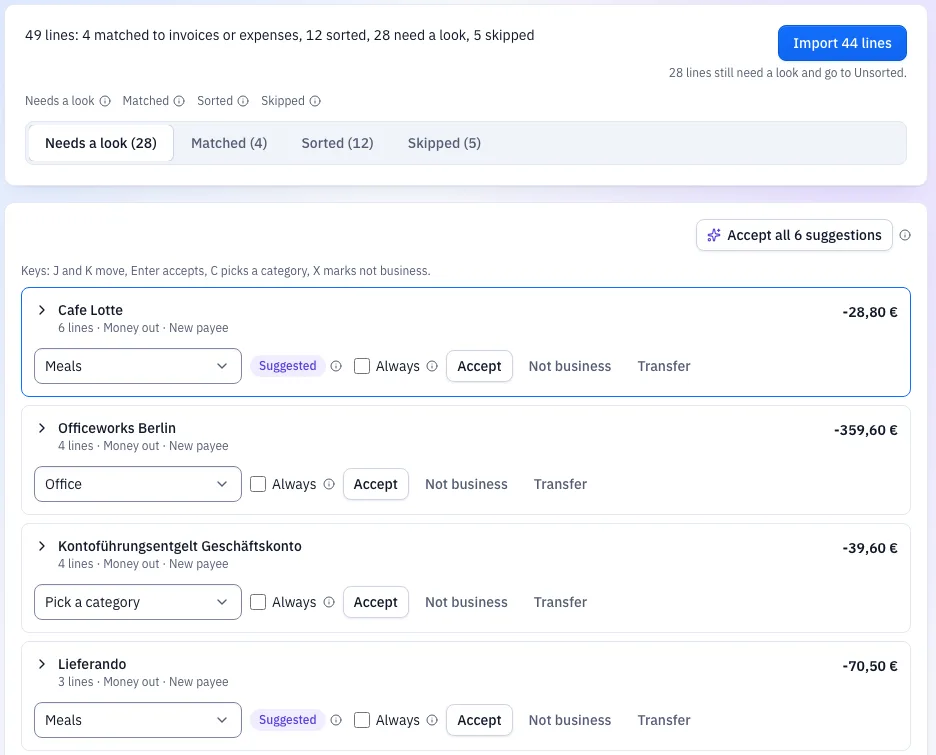
Lines are split into Matched, Sorted, Needs a look and Skipped. You decide what is left.
Import
Press Import. Only then do the lines reach your books, and a whole import can be undone.
Checked Before Anything Is Imported
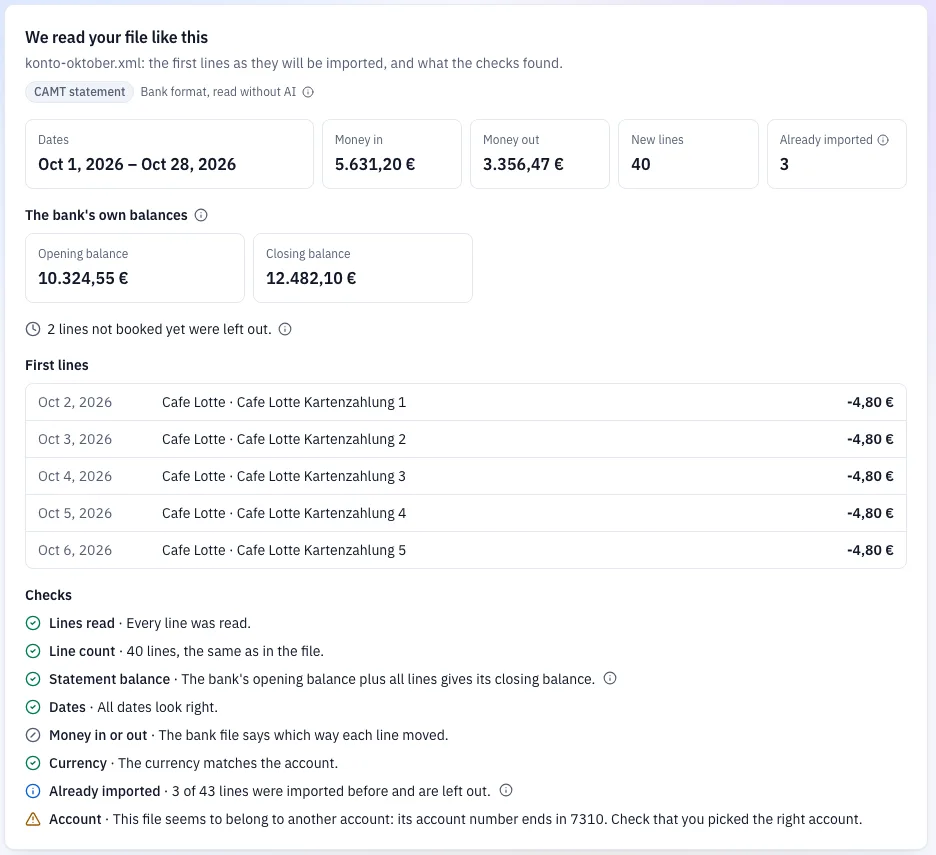
QuickBilling reads the whole file first and shows you what it found. The file is kept in the Files view.
- Every line has a valid date and a valid amount
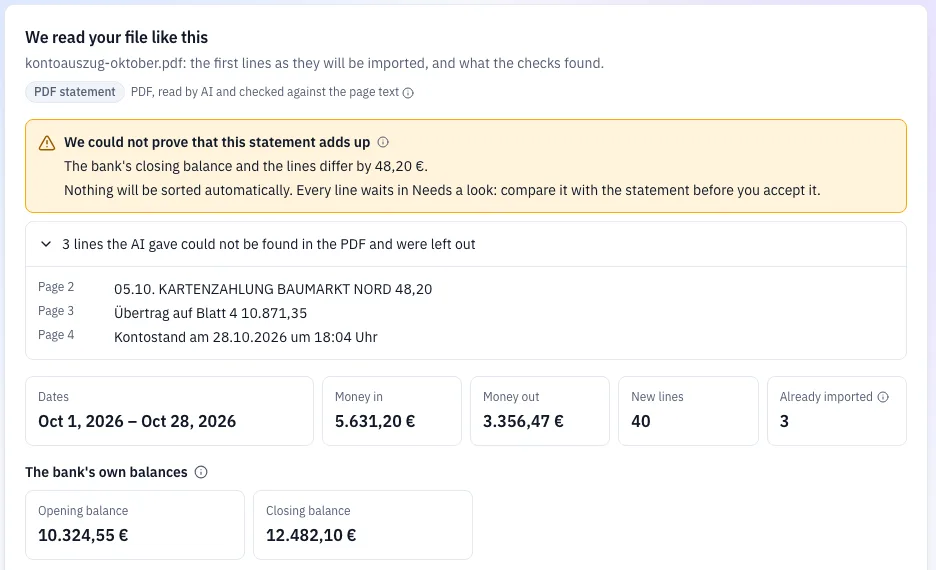
- Where the file has balances, opening balance plus all lines must equal the closing balance, to the cent
- Lines you imported before are recognized and not imported twice
How the Lines Are Sorted
Every line lands in one of four groups before you press Import, so you categorize bank transactions once per payee, not once per line.
Matched
Money in that fits an open invoice: same amount and the invoice number in the reference, or a unique amount and the customer's name. The invoice is marked paid on the bank date. Money out that fits an expense you already entered.
Sorted
Payees you categorized before are sorted the same way again, and so are payees covered by a rule.
Needs a look
Everything else, grouped by payee, so one decision covers all of that payee's lines. Tick Always and the decision becomes a rule for future imports.
Skipped
Lines you leave out, such as transfers between your own accounts or spending that is not business.
For payees QuickBilling has never seen, it can suggest a category from the payee name and one example text, with long numbers hidden. A suggestion changes nothing until you accept it, and Accept all suggestions takes them in one click.
Lines you leave undecided go to an Unsorted list after the import. They are counted in no report until you sort them.
File Formats
CSV or Excel from any bank, plus the common bank formats.
- CSV: comma, semicolon or tab separated, any common encoding
- Excel: XLSX, and the .xls files many banks export that are really web tables. Read just like a CSV; formulas are not recalculated and macros never run
- CAMT (camt.053 and camt.052), MT940, OFX and QFX: read by plain code, no AI
- For a CSV or Excel file, an AI model looks at about 60 sample lines to find the date, amount, payee and text columns; fixed program code then reads every line
- The layout is remembered, so the next file from the same bank needs no AI at all
- If a file cannot be worked out, you map the columns by hand
- If a workbook has several sheets, the one with the most rows is read, and QuickBilling tells you which
- Not read: the old Excel format from before 2007 (.xls), which you can save as XLSX or CSV first, and password-protected workbooks
What Goes to the AI, and What Does Not
No bank login
You upload a file. QuickBilling does not log in to your bank and has no connection to it.
Bank formats
CAMT, MT940, OFX and QFX files are read by plain code. No AI sees them.
CSV and Excel
The AI sees about 60 sample lines to work out the columns. Program code reads every line.
Suggestions
For a new payee, the AI gets the payee name and one example text, with long numbers hidden.
Plans and Limits
Up to 50,000 lines and 10 MB per file. Works in business and personal workspaces.
Free
100 bank lines a month
Premium
2,000 bank lines a month
Unlimited
No monthly cap
PDF statements on Premium and Unlimited
Bank Statement Import: FAQs
Short answers to what people ask before they start.
Do I Have to Connect My Bank?
No. You download a file from your online banking and upload it. There is no bank login and no connection.
My Bank Only Gives Me a CSV. Is That Enough?
Yes. QuickBilling reads CSV from any bank, separated by commas, semicolons or tabs.
My Bank Gives Me an Excel File. Do I Have to Convert It?
No. Upload the XLSX file, or the .xls file your bank gave you, as it is. Only the old Excel format from before 2007 has to be saved as XLSX or CSV first, and QuickBilling tells you if that is the case.
What if Two Files Overlap?
Lines you imported before are recognized and not imported again, so you can import bank transactions from files whose dates overlap.
Is the Matching Always Right?
Not always, which is why nothing is imported until you press Import. Invoices are matched only on amount plus invoice number, or a unique amount plus the customer's name, and every suggestion waits for you.
What Happens to Lines I Have Not Decided On?
They go to an Unsorted list and are counted in no report until you sort them.
Can I Undo an Import?
Yes. A whole import can be undone.
Can I Upload a PDF Statement?
Yes, on the paid plans, if the PDF contains real text and has up to 40 pages. Scans and photos do not work.